Registering a JDG (Sole Proprietorship)
Before you begin, make sure you already have
- PESEL
- a trusted profile (Profil zaufany)
- an address (at least a correspondence address)
Registering a sole proprietorship on biznes.gov.pl
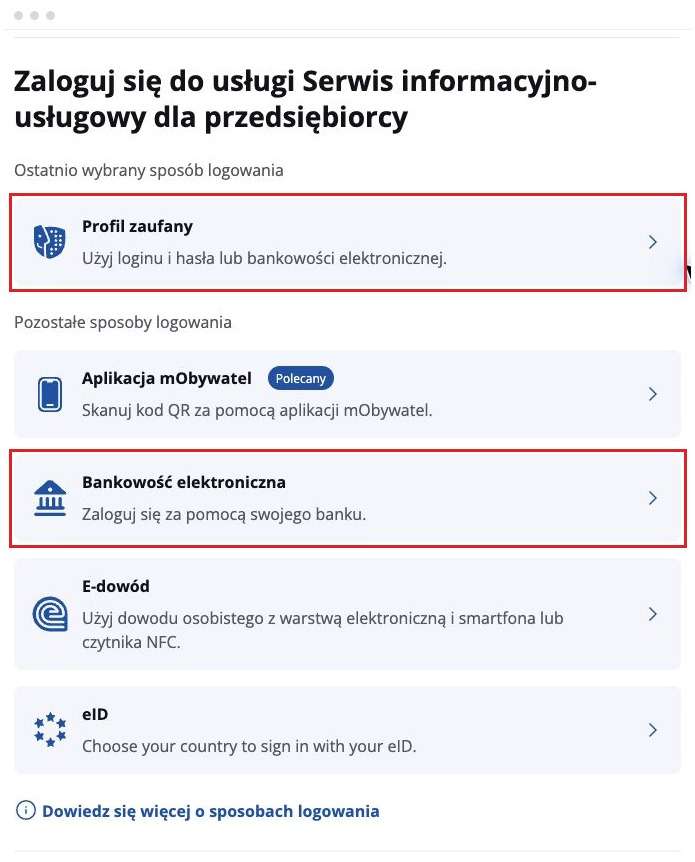
- Open the login page from the portal header. On Login.gov.pl, choose Profil zaufany or Bankowość elektroniczna.
- In Usługi CEIDG, choose ZAREJESTRUJ FIRMĘ:
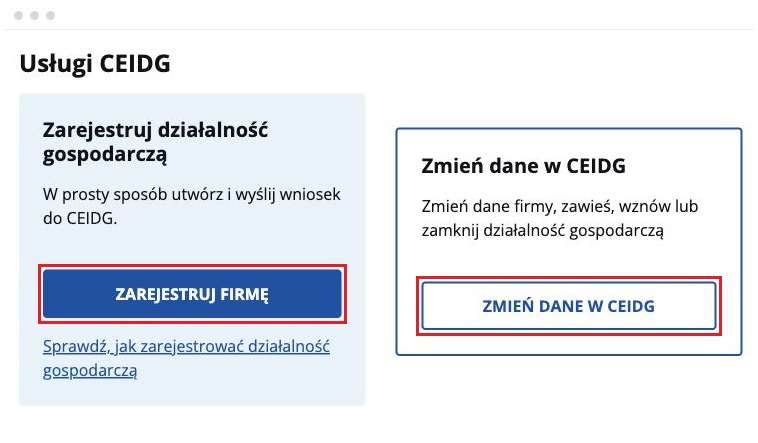
After that, you will be guided through a step-by-step form to register your sole proprietorship.
Filling out the registration form
1. Welcome screen
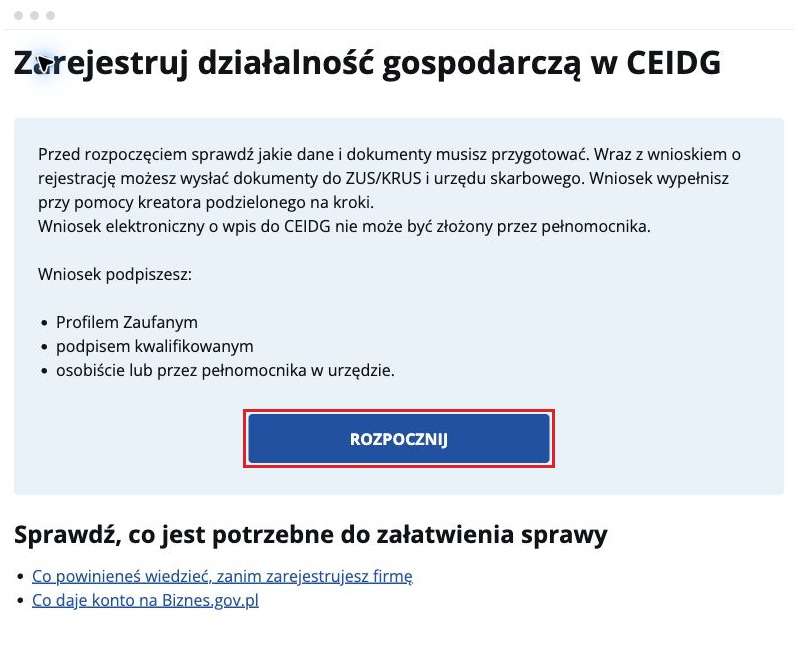
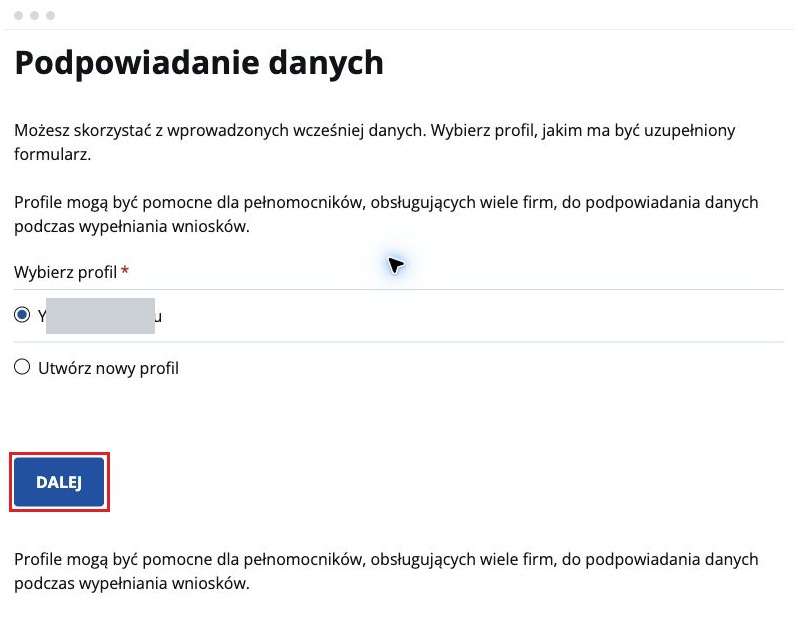
Click Rozpocznij. If Podpowiadanie danych appears, select your own profile; the wizard can use details already provided.
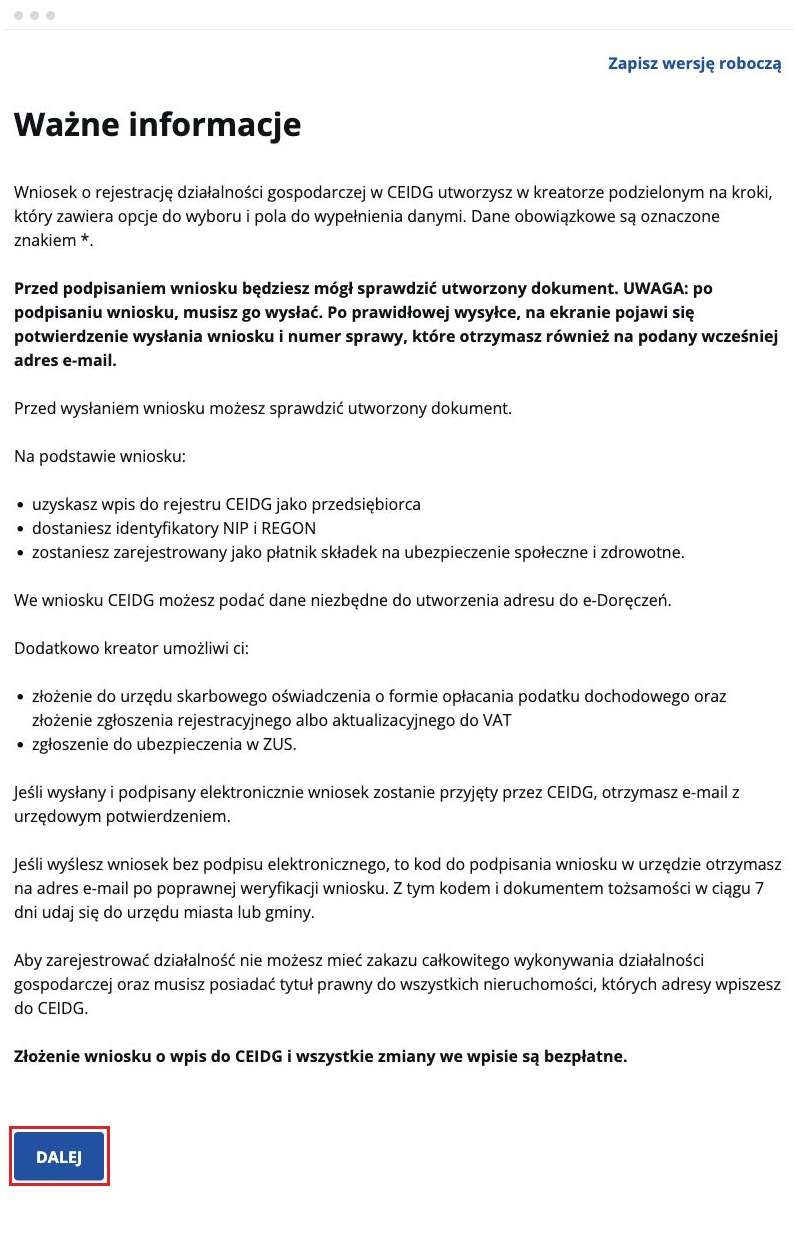
2. Important information
Click DALEJ
3. Applicant details
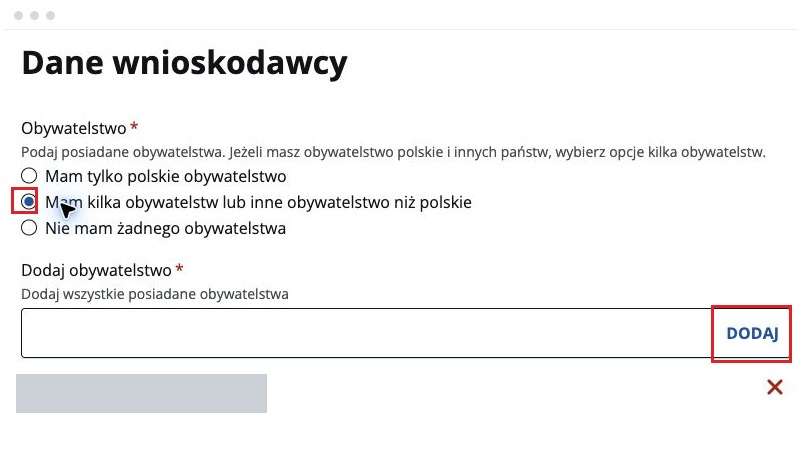
For non-Polish or multiple citizenships, choose Mam kilka obywatelstw lub inne obywatelstwo niż polskie and add your citizenships.
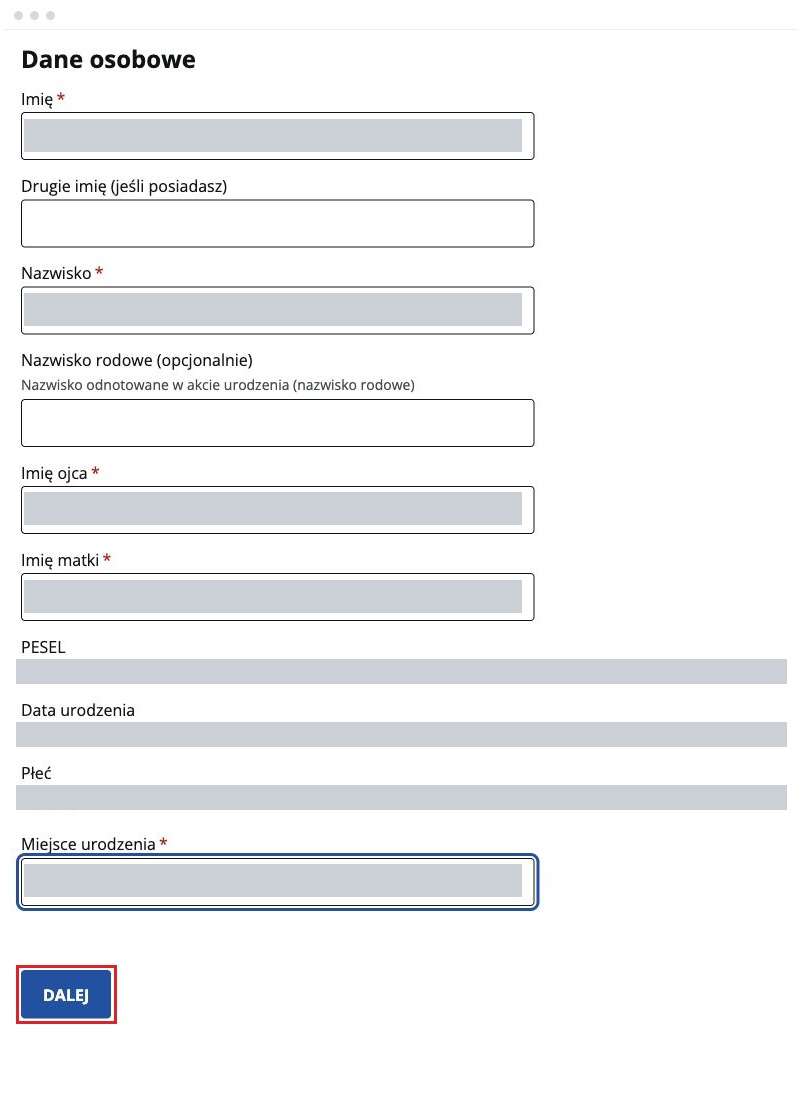
Next, fill in your name, surname, parents’ names, PESEL and place of birth. Some details are filled in automatically.
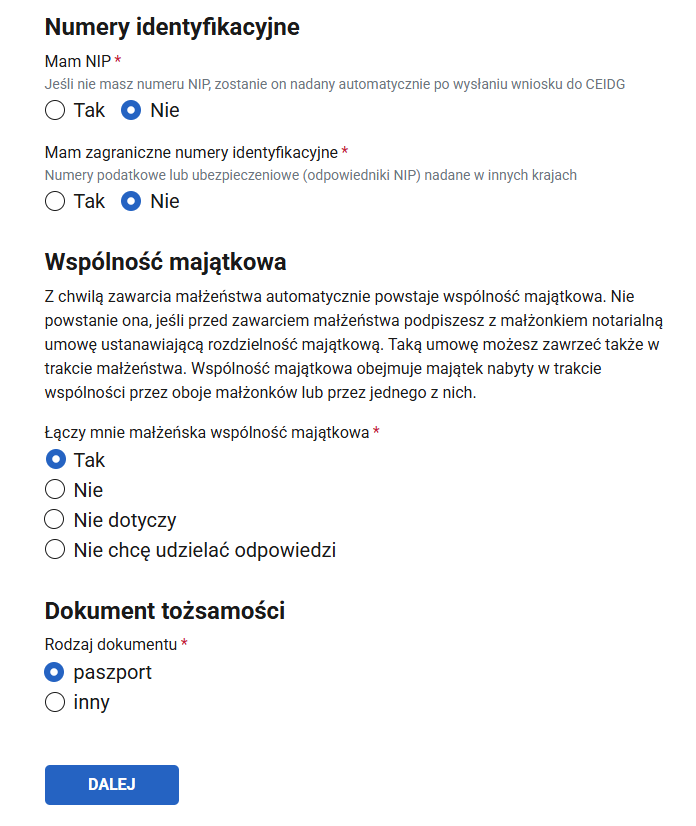
And a few more questions:
- You most likely do not have a NIP number yet.
- Foreign identification number (they are mainly interested in European tax IDs, but you can also enter a Belarusian/Ukrainian one).
- Marital property regime (Wspólność majątkowa):
- if married without a prenuptial agreement — tak,
- if married with a prenuptial agreement — nie,
- if not married — nie dotyczy,
- if you prefer not to answer — Nie chcę udzielać odpowiedzi.
The result should look like this:
Click DALEJ
4. Foreigner details
Enter the number and issue date of the current document confirming your right to run a JDG in Poland. Choose the issuing authority shown in the document. For Konsul lub Wojewoda, the wizard provides Wyszukaj urząd; search using the Polish name of the authority.
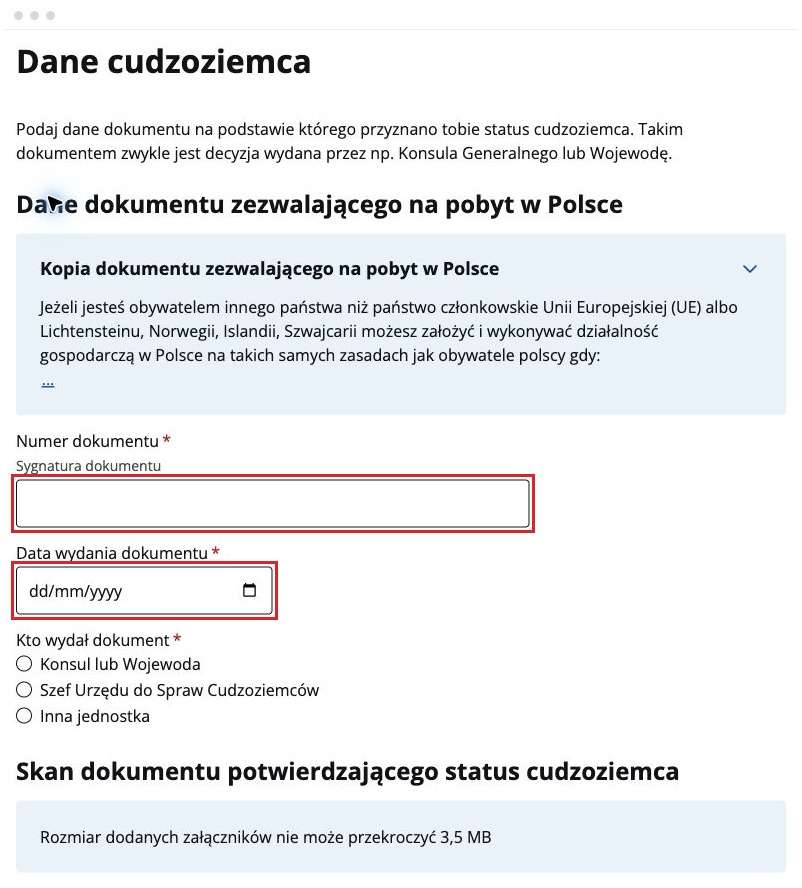
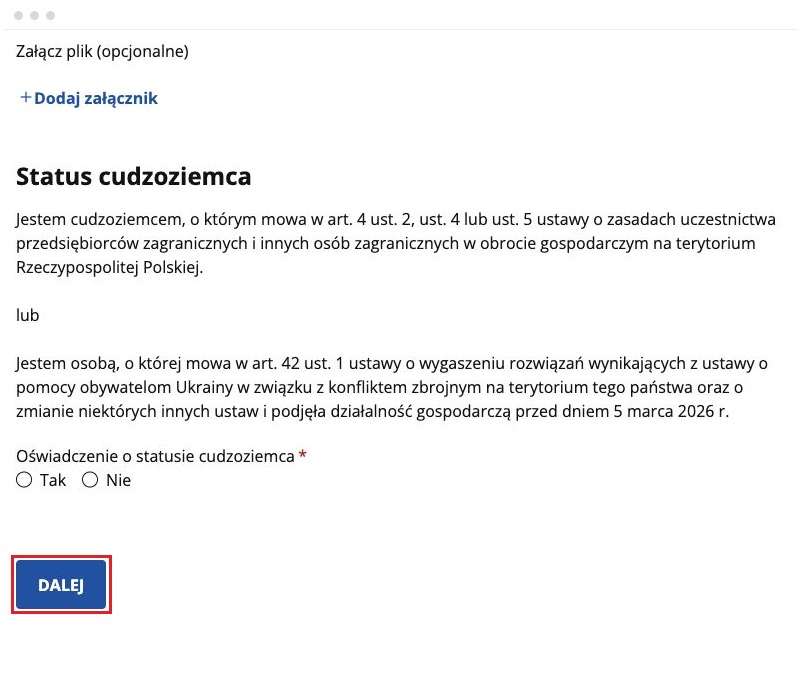
Attach the documents confirming your right to run a JDG. The total size must not exceed 3.5 MB.
Read Oświadczenie o statusie cudzoziemca and answer according to your actual status.
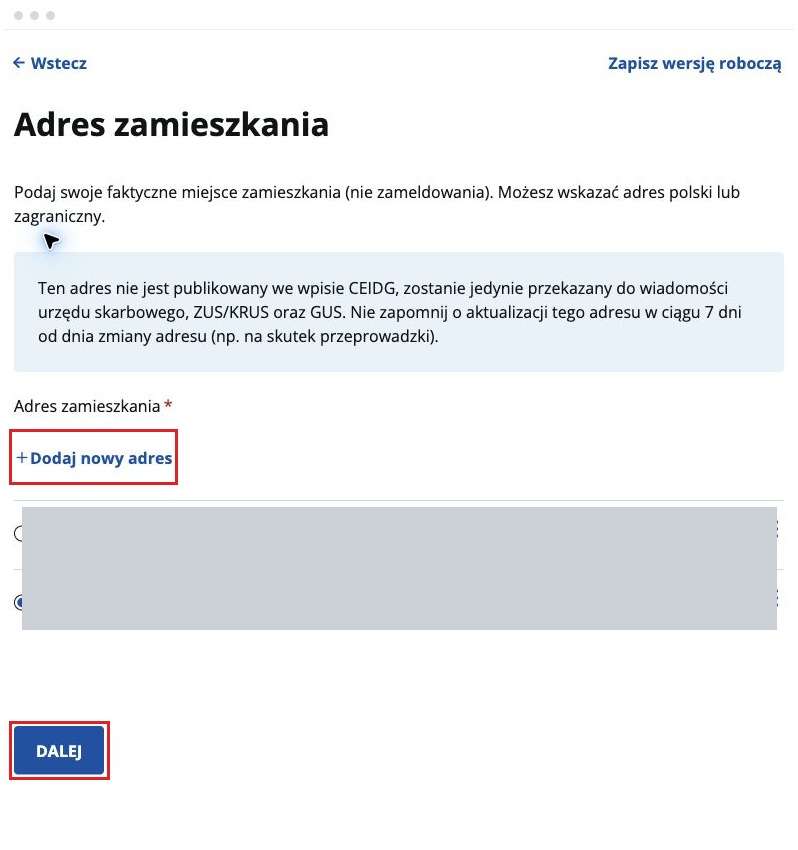
5. Residential address
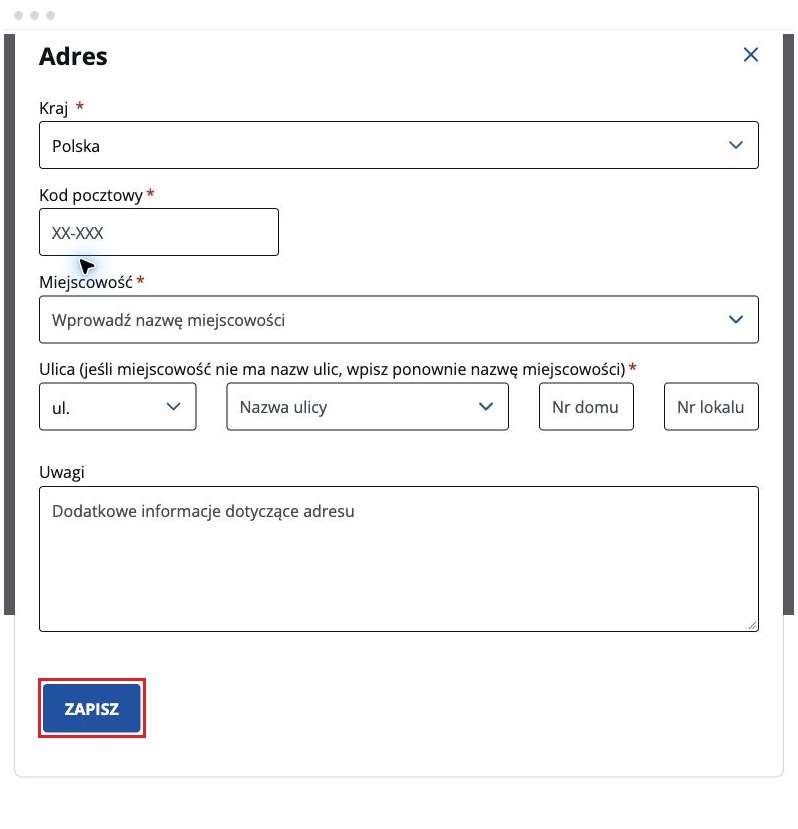
Click Dodaj nowy adres, enter your actual residential address and save the address dialog with Zapisz. The country selector also allows a foreign address when that is where you actually live.
Select the saved address and click Dalej.
6. Company details
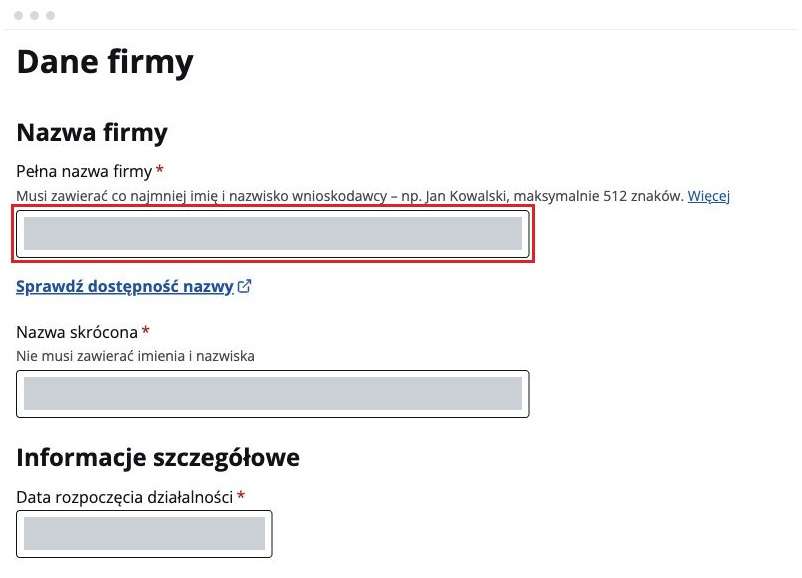
- The full company name must include at least your first and last name in Latin characters. The short name can be anything. For simplicity, it is recommended to use "First Name Last Name" for both the full and short names.
- The start date of activity can be today or a future date. You can change it later.
- You also need to specify the planned number of employees including yourself (if you don't plan to hire anyone, enter 1).
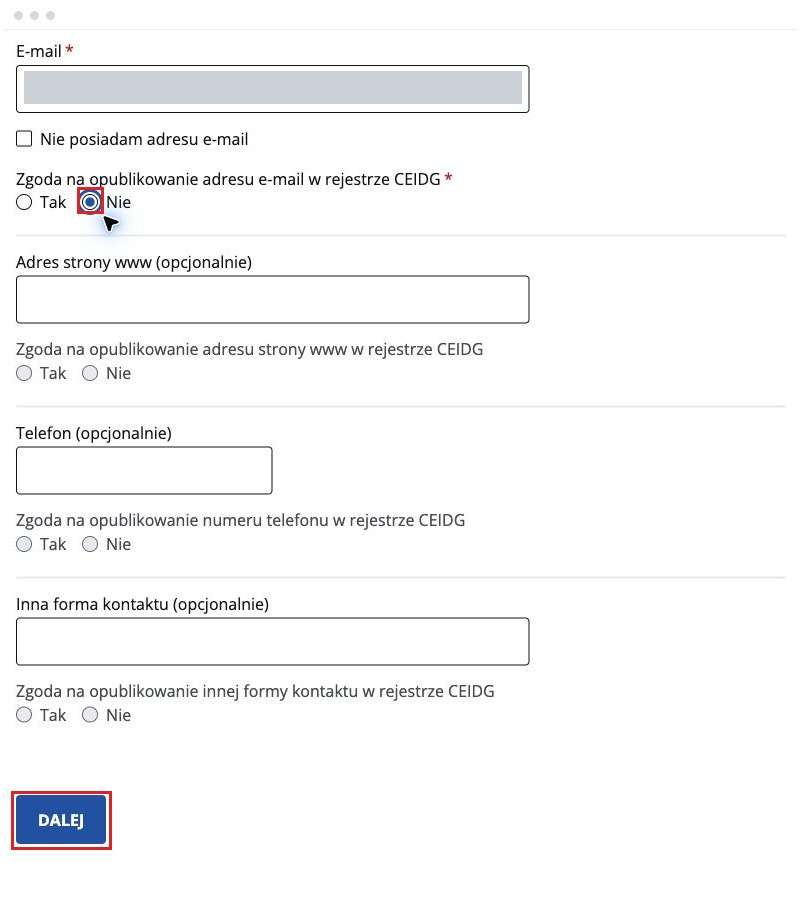
Publication consent is now separate for e-mail, website, phone and other contact details.
Note
We recommend choosing Nie to keep your contact details private and avoid a flood of spam after registration.
7. Activity codes
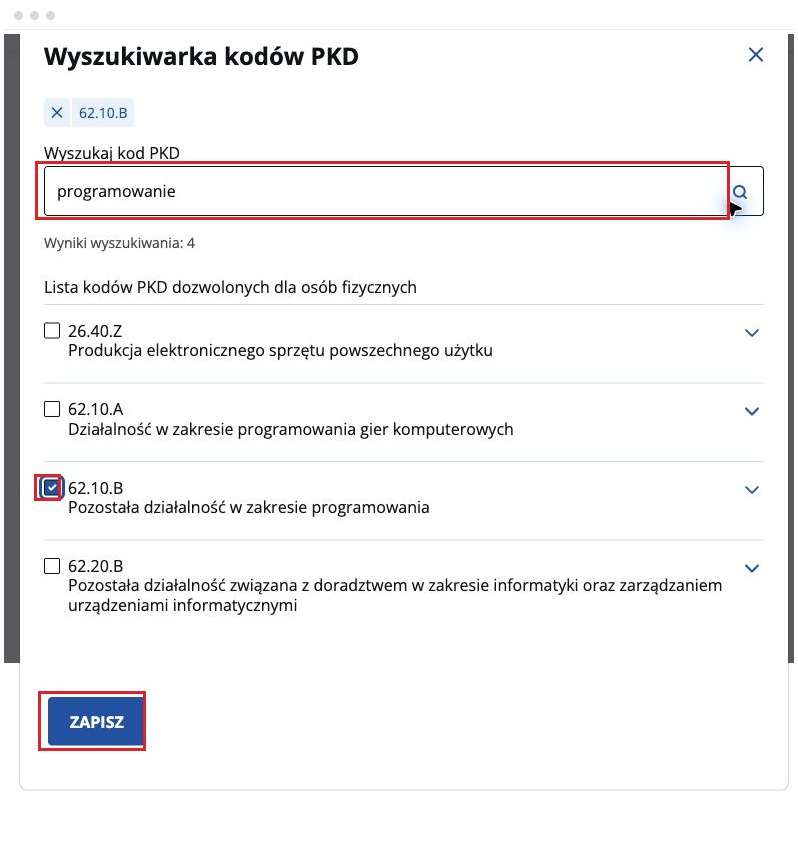
Click Wybierz kod PKD, search by code or a description of the activity, select the appropriate items and click Zapisz. Keep one main code; additional codes should describe activities you actually plan to carry out.
8. Correspondence address
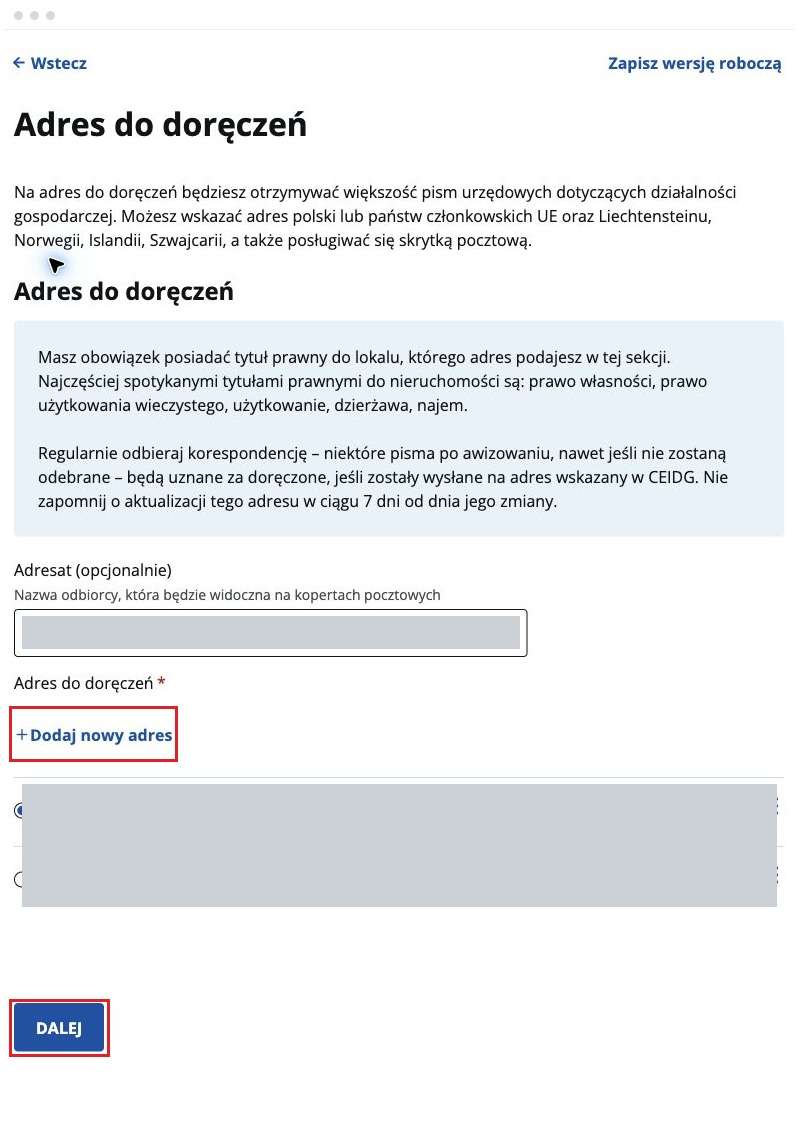
Here you need to provide the recipient and correspondence address. Government agencies will send paper mail to this address. You can safely use your rented apartment address — nothing will change for your landlord.
Click Dodaj nowy adres and the result should look like this:
Click DALEJ
8a. e-Doręczenia — electronic document delivery system
Info
e-Doręczenia is an electronic system for delivering official documents and correspondence. It allows organizations, entrepreneurs, and individuals to receive and send legally binding messages digitally, replacing traditional paper mail. These messages are legally equivalent to registered mail with acknowledgment of receipt. Each user is assigned an electronic delivery address (Adres do Doręczeń Elektronicznych, ADE). The recipient receives a notification about a new document and can view it through a secure portal. You can read more on the official e-Doręczenia page.
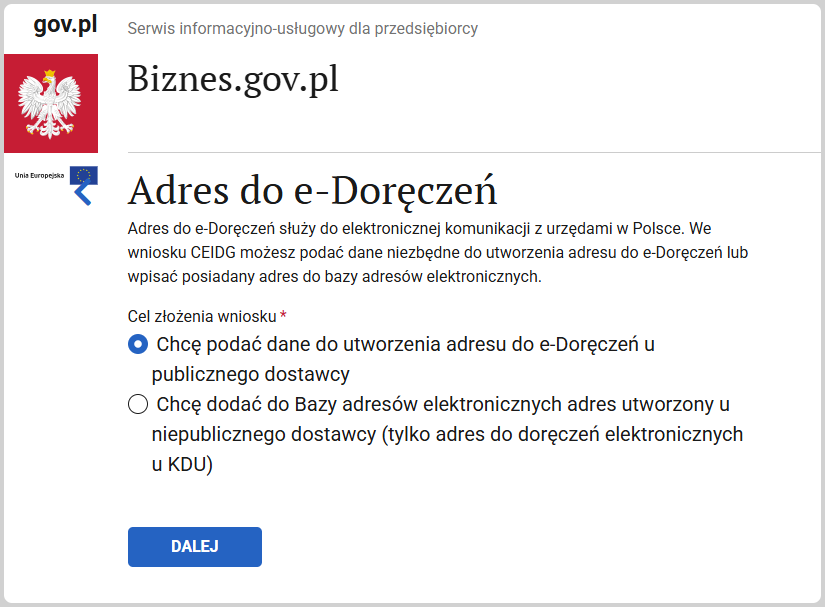
At the Adres do e-Doręczeń step, you will be offered to register for electronic delivery. You most likely don't have such an address yet, so select the first option — I want to submit data to create an e-Doręczenia address.
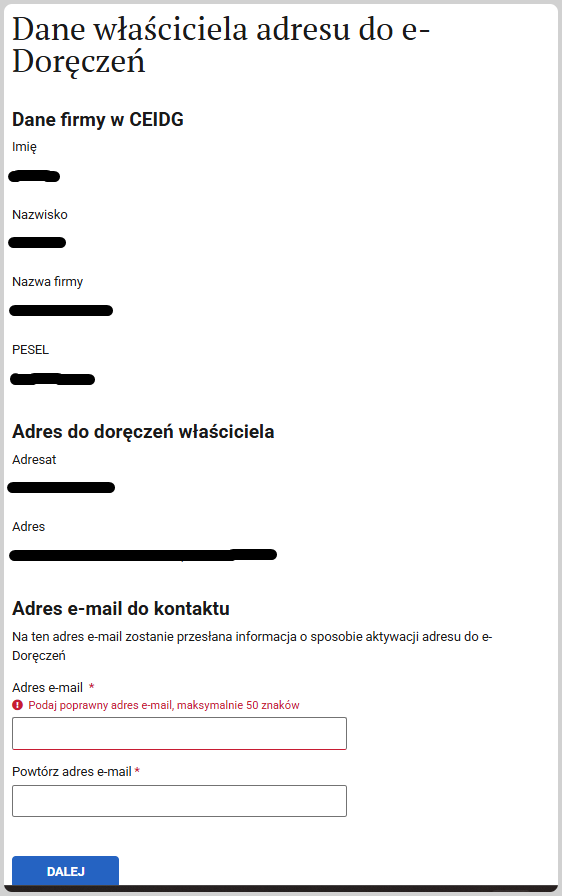
At the Dane właściciela adresu do e-Doręczeń step, the system will display the user data you entered earlier. All you need to do is enter the email address where notifications will be sent.
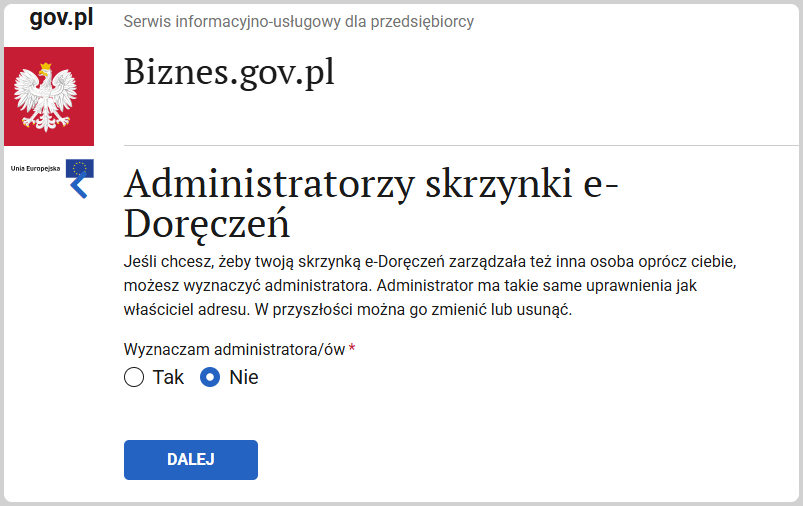
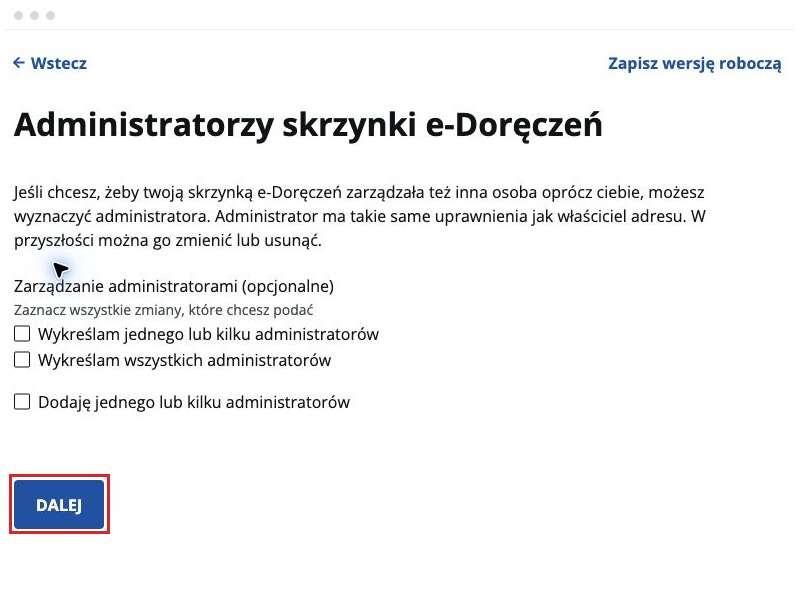
Step Administratorzy skrzynki e-Doręczeń. If you want another person (an administrator) to have access to your e-Doręczenia address, add them here. They will have the same permissions as the owner. You can remove them later. If not, select Nie.
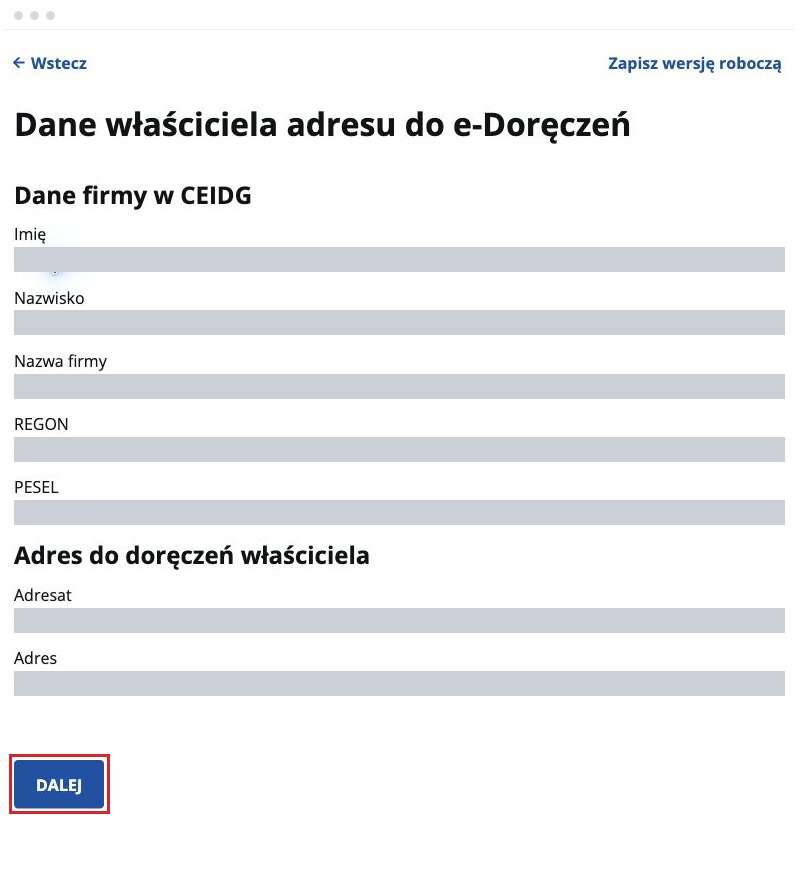
Click DALEJ
If the company already has an e-Doręczenia address, the wizard shows the existing address and owner details instead of asking you to create another one. Check the details. On Administratorzy skrzynki e-Doręczeń, leave the change checkboxes empty if no administrators are being added or removed.
9. Business activity address
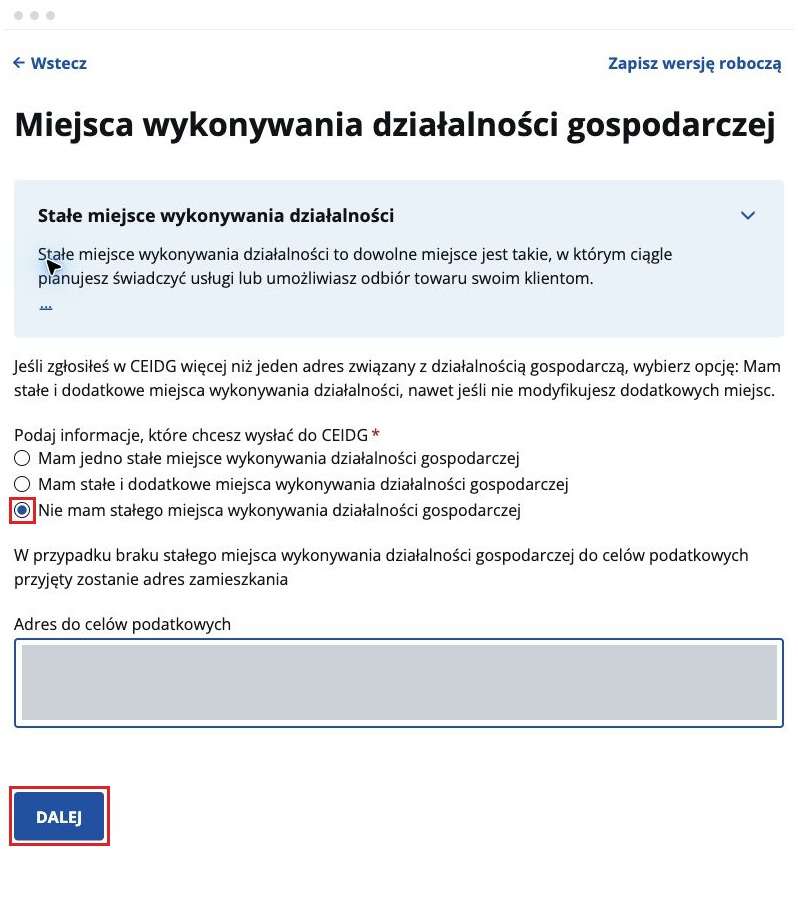
For IT professionals there is an option: "I do not have a permanent place of business" — select it. You probably don't want to use your rented apartment address here.
If you do have such an address (a real or virtual office), then enter it.
Click DALEJ
10. Choosing an insurance scheme
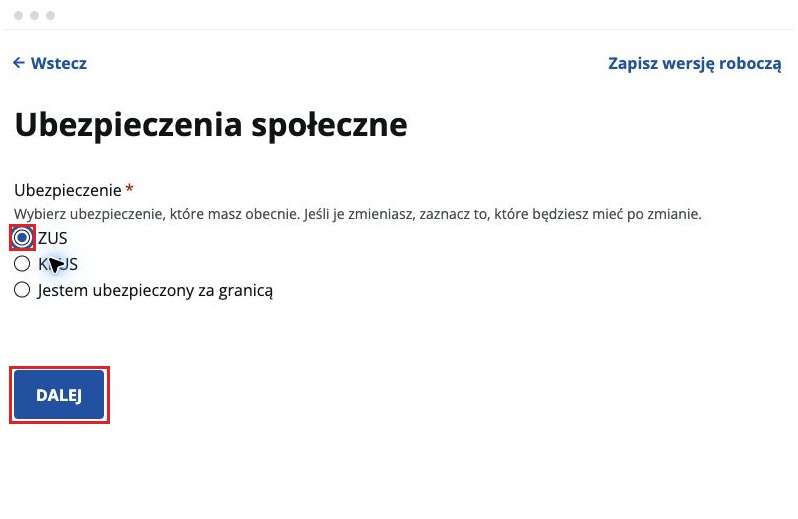
Choose ZUS if this is your applicable insurance institution. If the wizard asks for an insurance start date, use the actual start of your insurance obligation; the date field also appears in the ZUS application itself.
11. Tax office
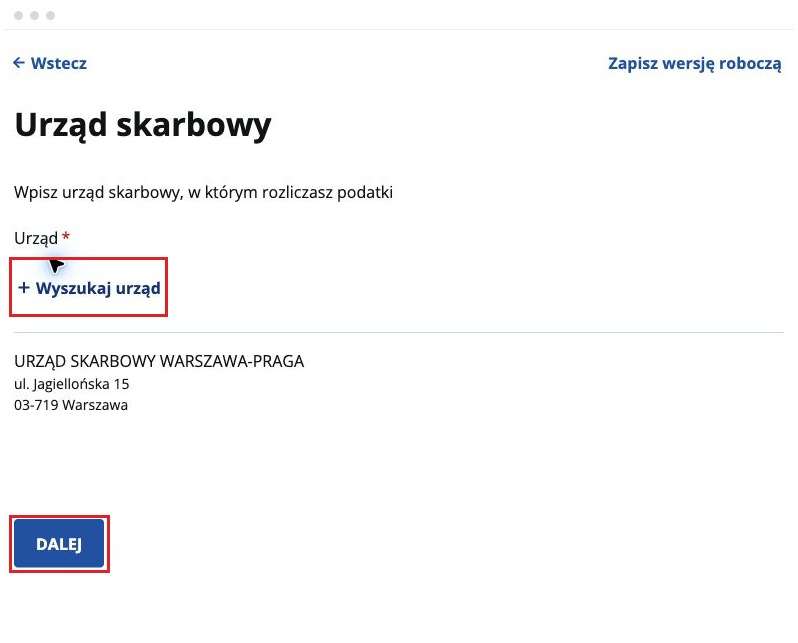
This is filled in automatically based on the address you entered earlier. If you know you belong to a different tax office, you can search for the correct one:
Click DALEJ
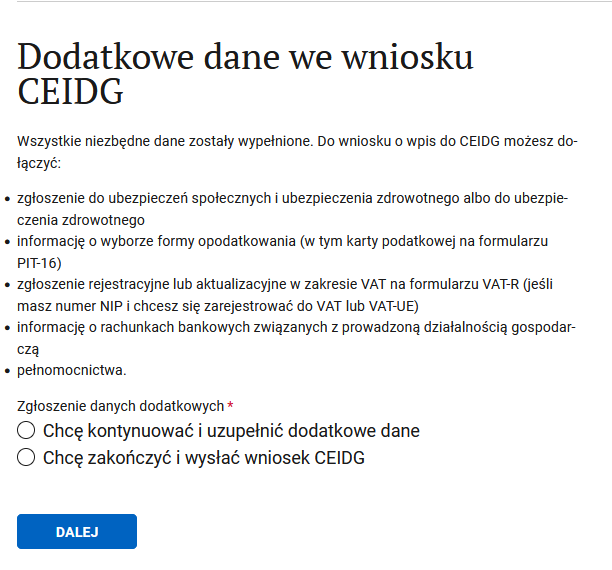
12. Additional information
You could stop here, but there is an option to register with ZUS and choose your tax system right away. Let's take advantage of that by selecting the first option:
Click DALEJ
If these items are presented as a list of sections, select the ZUS and income-tax sections you need. During an update of an existing entry, this list is called Edycja wpisu w CEIDG.
13. ZUS registration
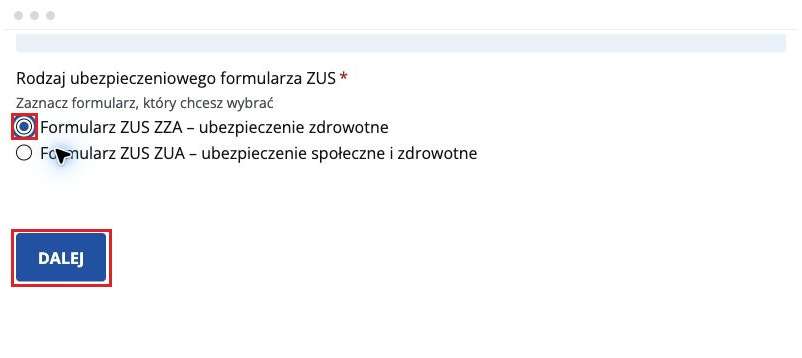
For an initial insurance application, choose the appropriate ZUS form. ZUS ZZA covers health insurance only, for example when you qualify for Ulga na start. ZUS ZUA covers social and health insurance. Do not choose a form solely because it is selected in an example.
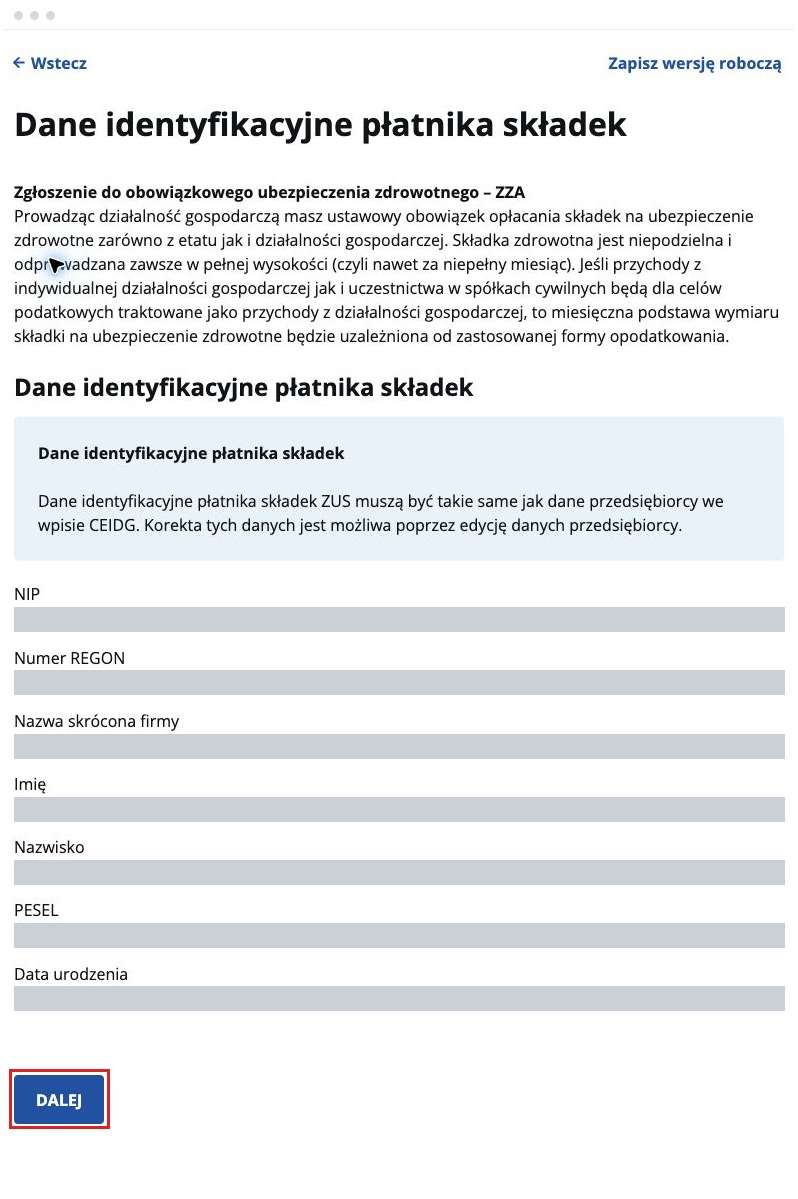
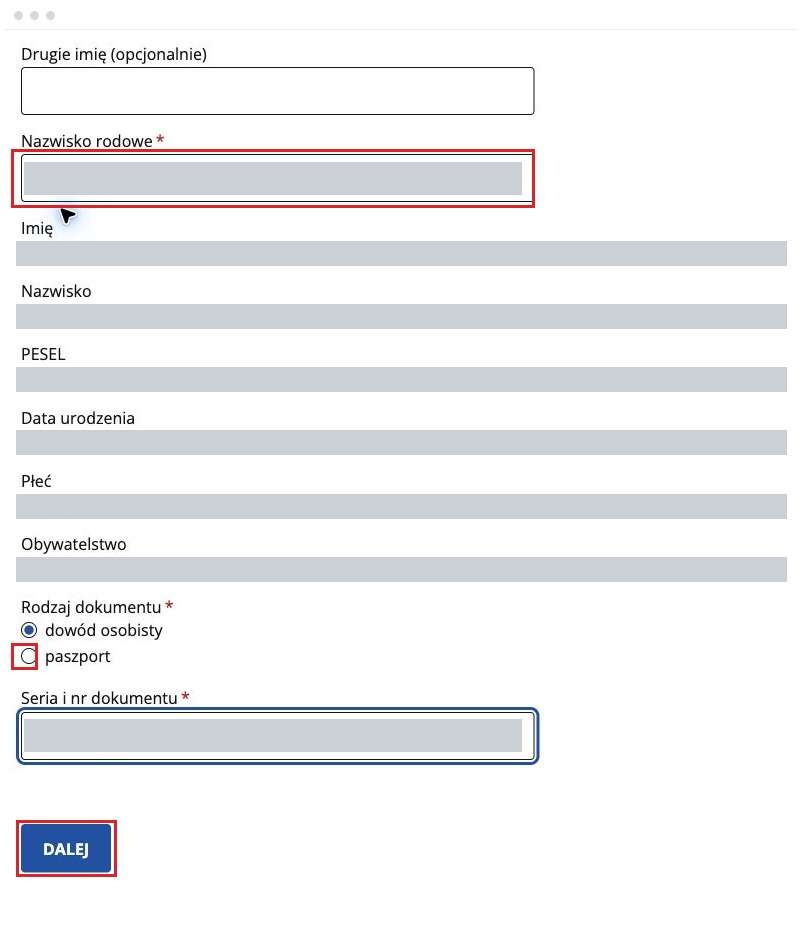
Check Dane identyfikacyjne płatnika składek, then Dane osoby ubezpieczonej. The latter includes the birth surname and identity-document details; choose the document type that you actually use.
14. ZUS details
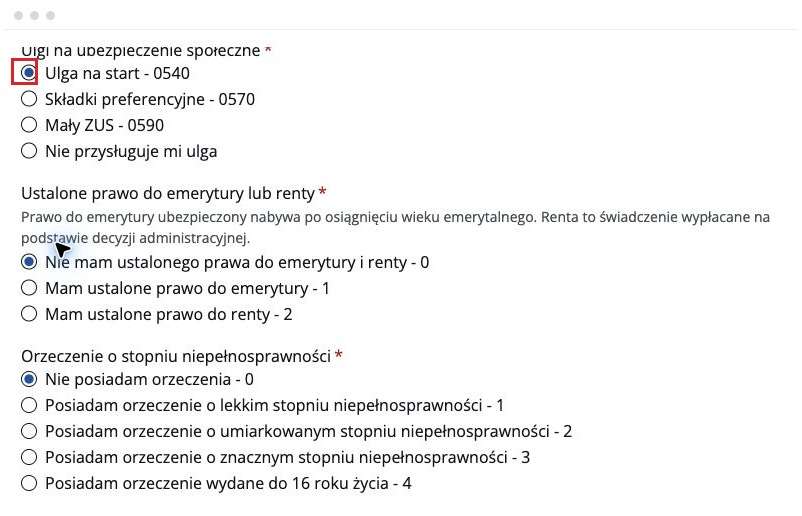
Enter the insurance start date, select any relief you qualify for (such as Ulga na start - 0540), and provide your pension and disability details.
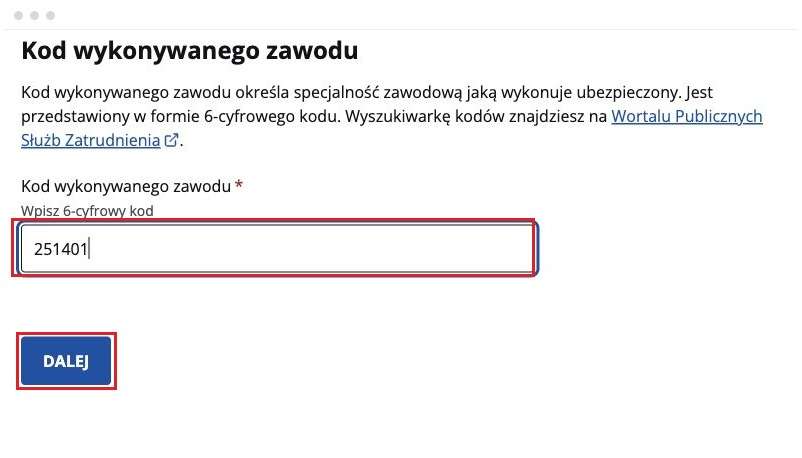
Enter the six-digit Kod wykonywanego zawodu in its separate field. You can find the occupation code in the official PSZ directory. This is an occupation code, not a PKD activity code.
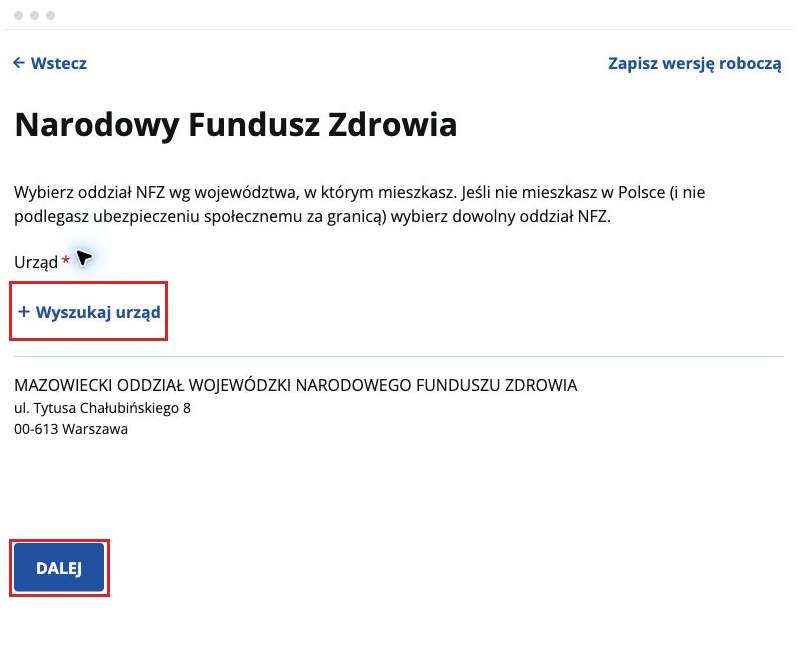
15. NFZ branch selection
Search for your branch based on your place of residence:
Click DALEJ
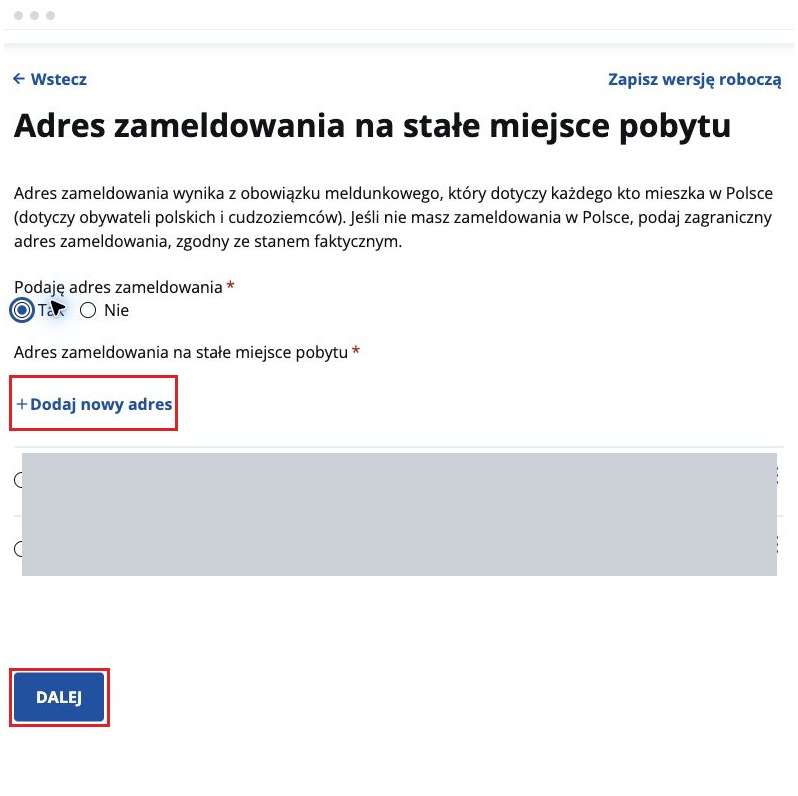
16. Registration address (zameldowanie)
Enter your registration address. If you do not have a Polish one, use your foreign registration address. To add an address, choose Tak under Podaję adres zameldowania.
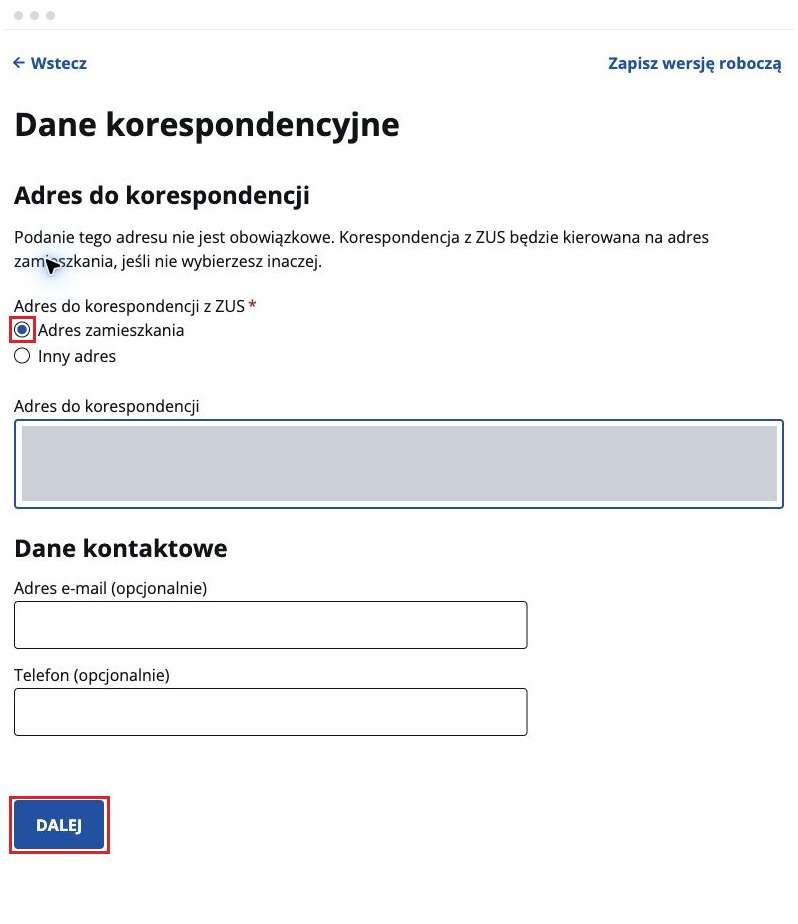
17. Correspondence address
Choose where ZUS paper mail should be delivered. Optionally, provide an email and phone number for contact:
Click DALEJ
18. Taxes
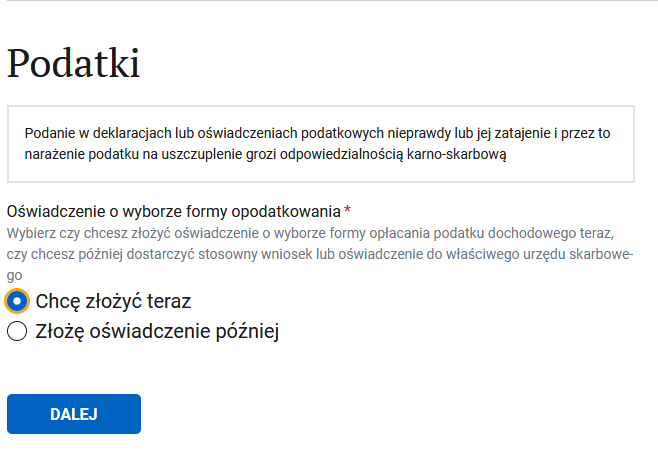
You can choose your tax system right away or temporarily skip this step.
Warning!
Only skip the tax system selection if you are absolutely sure you know what you are doing! If you forget to make a selection before paying your first tax, the default will be the general system (Skala podatkowa). You will only be able to change it from the beginning of the next year.
Click DALEJ
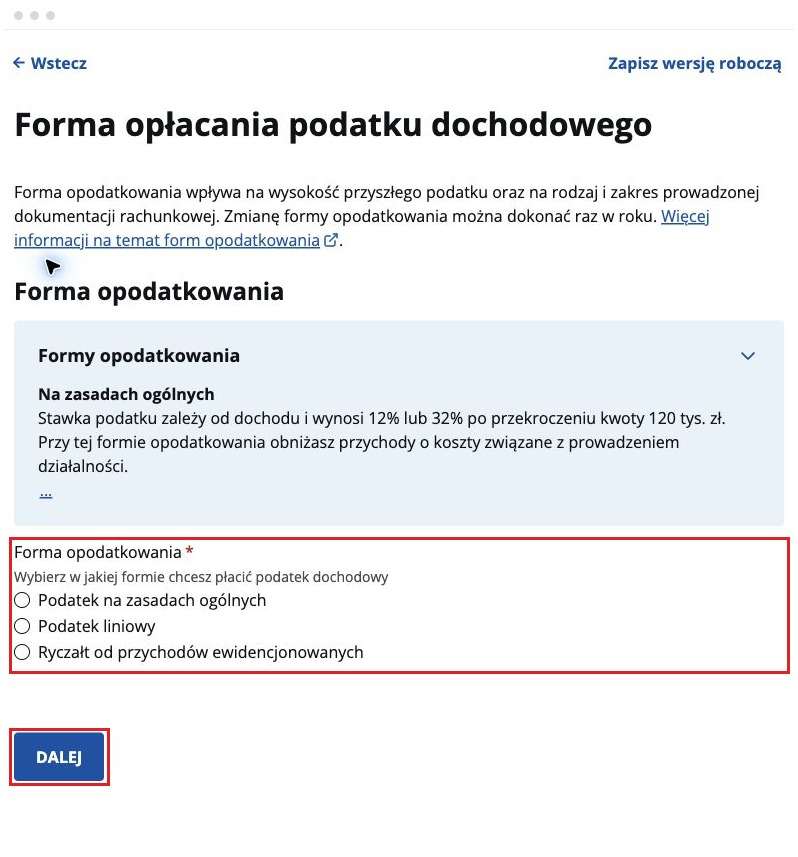
19. Choosing a tax system
Choose your income-tax system.
Click Dalej.
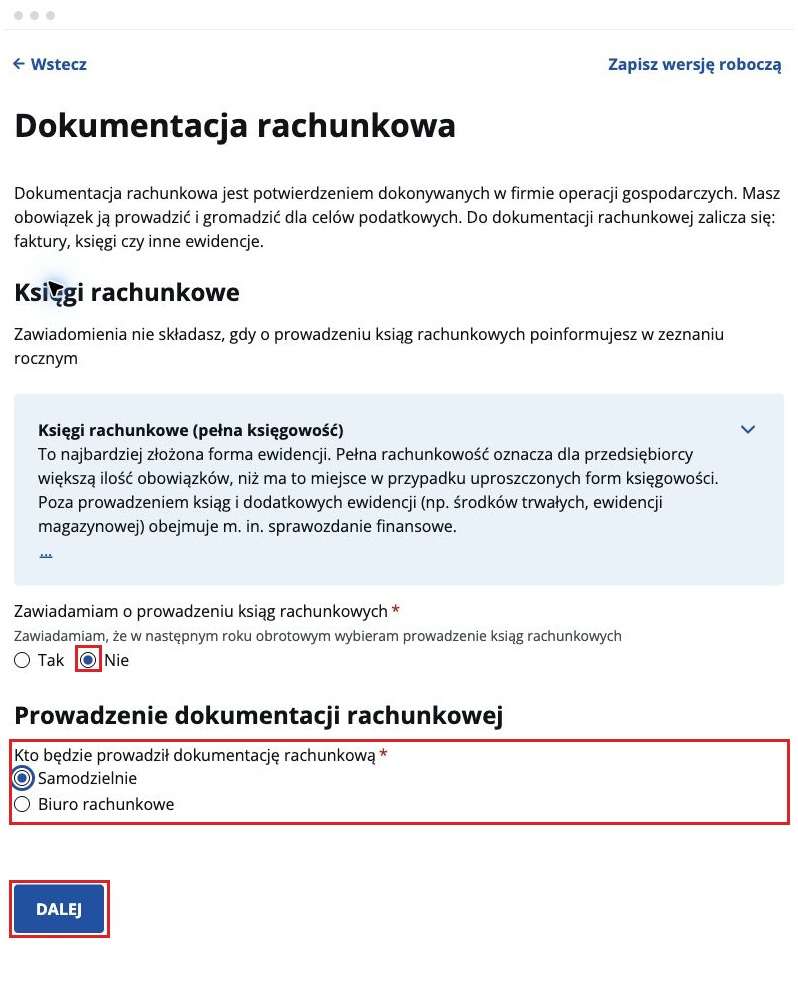
20. Accounting records
- If you chose the ryczałt tax system, you can opt for simplified record-keeping: (Zawiadam o prowadzeniu ksiąg rachunkowych — Nie).
- Indicate who will handle your accounting: yourself or an accountant. You can change this later.
Click DALEJ
21. Address for storing accounting documents
Choose the address where your accounting documents will be kept:
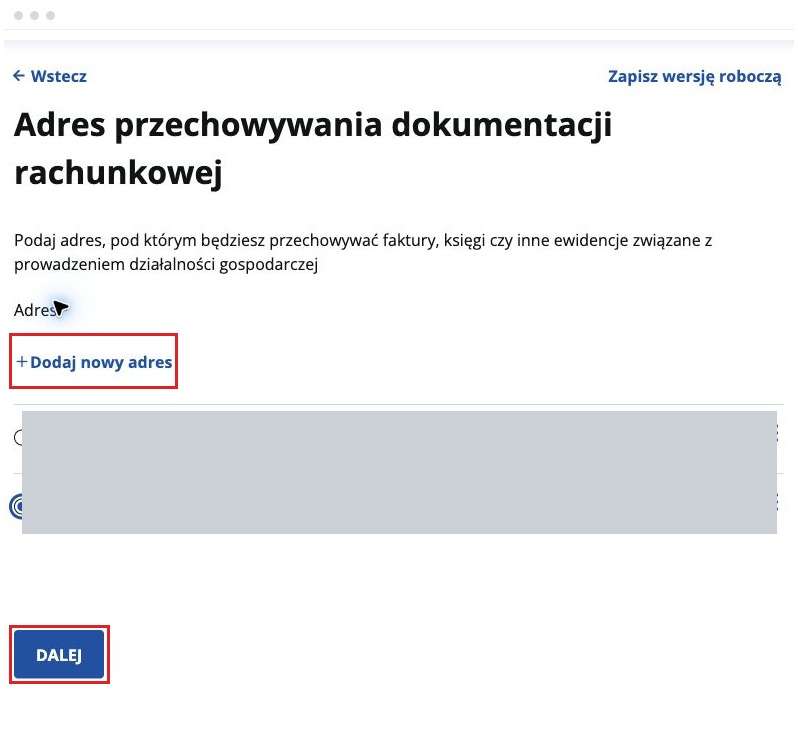
Click DALEJ
22. Bank accounts
Info
You will need a PLN account to pay taxes. USD/EUR accounts are needed for receiving payments from abroad. You are allowed to use a personal account (konto osobiste) for your sole proprietorship. In some cases, a business account (konto firmowe) is mandatory.
A konto firmowe is required if any of the following apply:
- You are registered as an active VAT payer (czynny płatnik VAT). For settlements, you will be able to use the split payment mechanism (mechanizm podzielonej płatności (MPP)).
- A single transaction with another entrepreneur exceeds 15,000 PLN (even if you pay the invoice in installments).
- Sensitive operations: by law, certain operations are considered "sensitive" and require a business account. The list of such operations can be found in Annex 15 to the VAT Act. More details at Biznes.gov.pl - MPP, https://t.me/JDG_PBH/9236 and https://t.me/JDG_PBH/18806
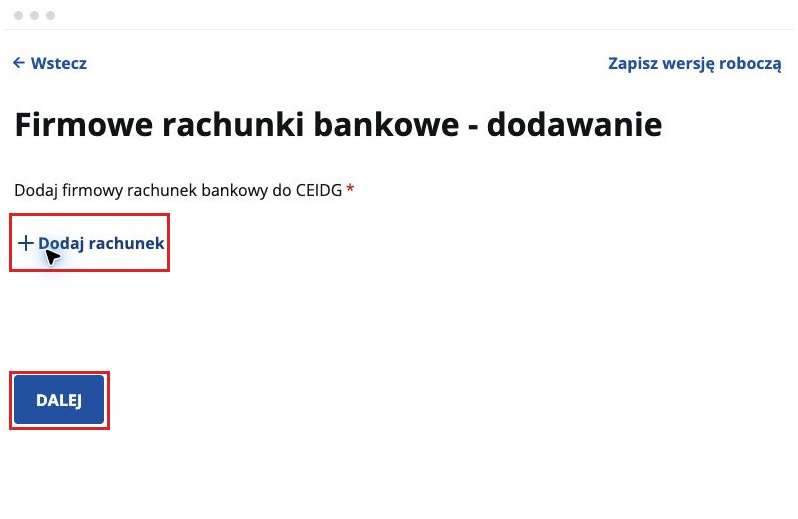
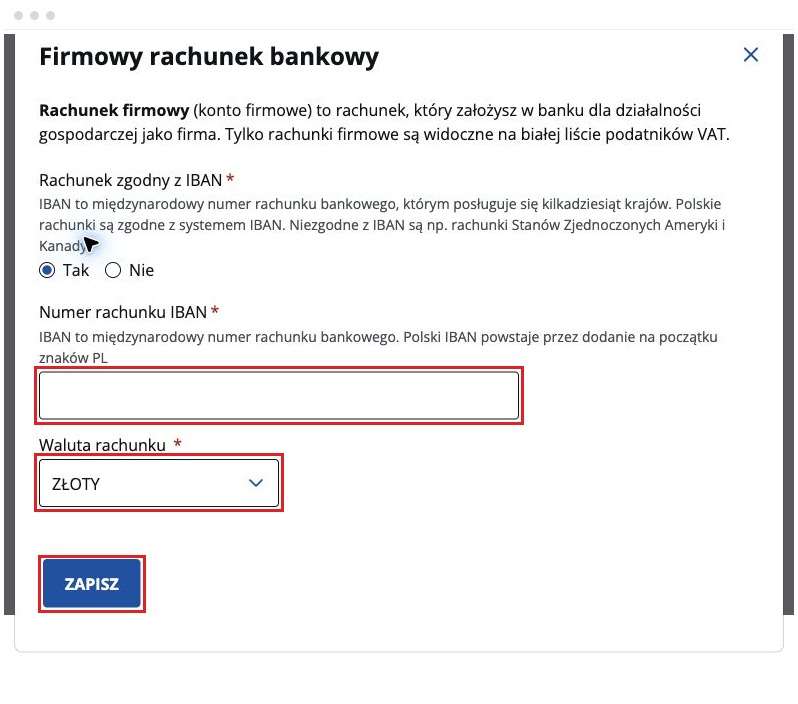
If you already have a company account, use Dodaj rachunek. You can add an account later if it has not been opened yet.
For an account using IBAN, choose Tak, enter the IBAN and select Waluta rachunku. A Polish IBAN starts with PL. Select the account’s actual currency, then save the dialog.
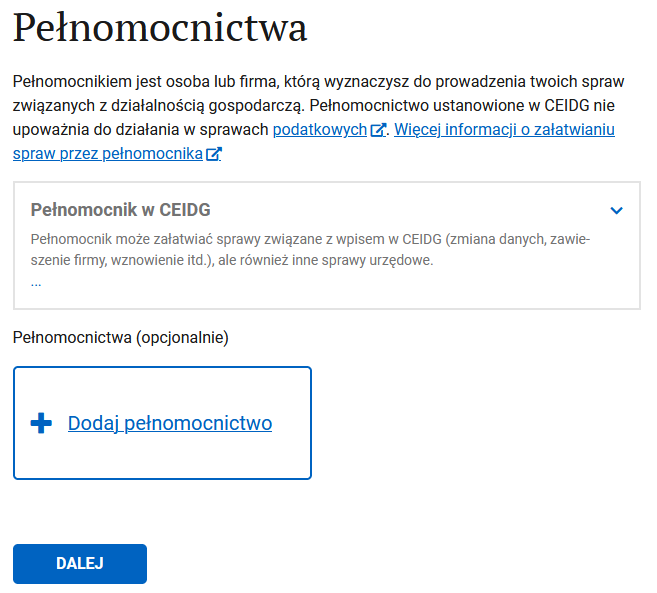
23. Power of attorney
You may need a representative who will have power of attorney from you for certain actions. You can add them at this step.
Click DALEJ
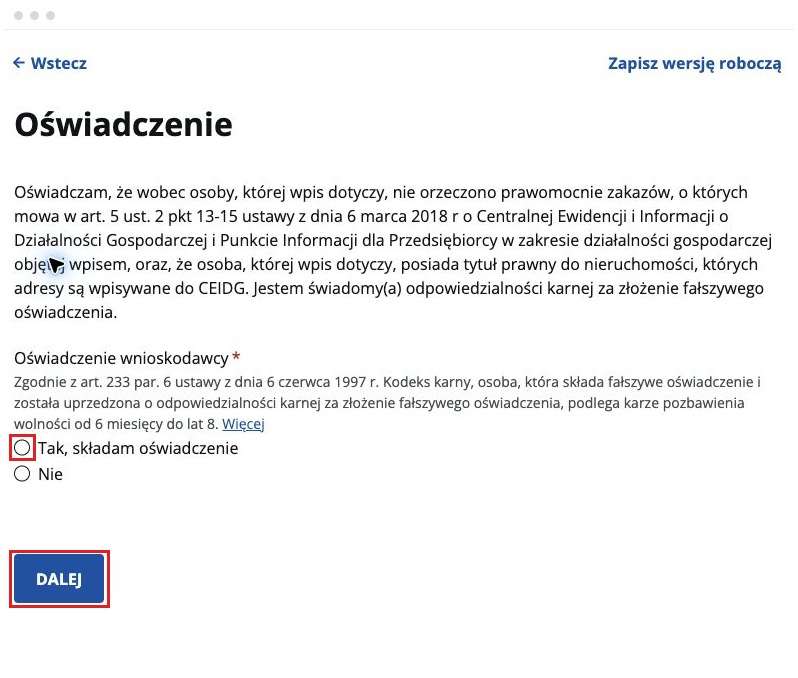
24. Declaration
A statement about legal responsibility:
Click DALEJ
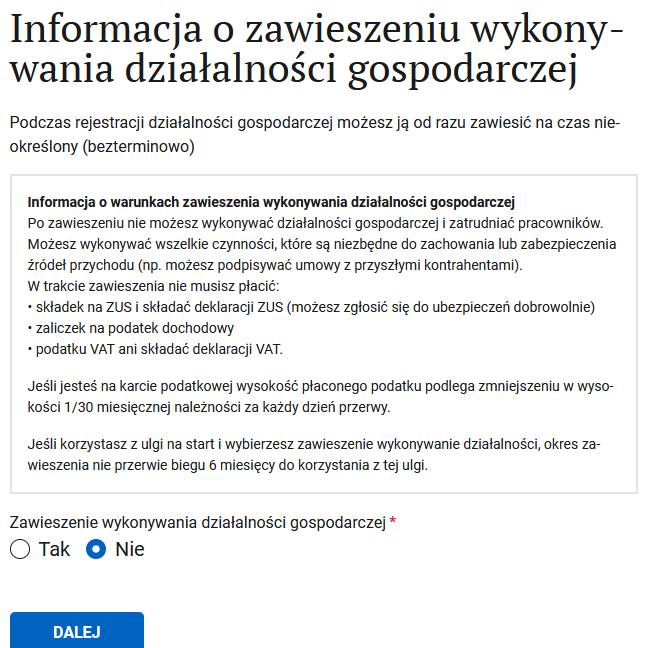
25. Suspending business activity
You most likely do not want to suspend your activity right away:
Click DALEJ
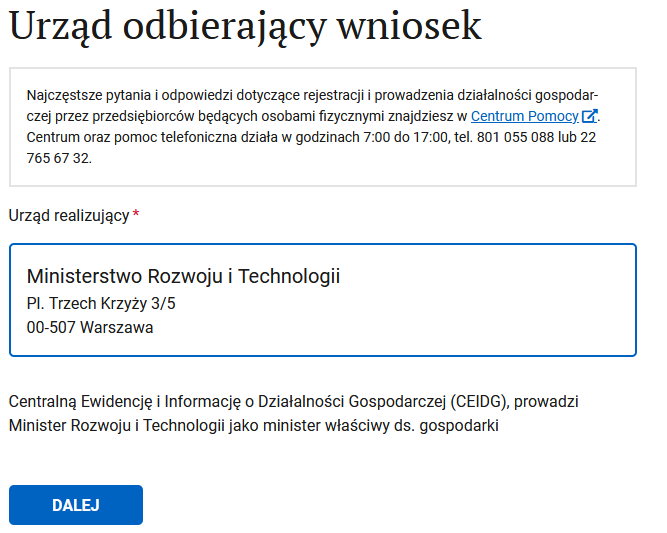
26. Reference information
This section tells you where and from whom you can get more information and assistance, as well as who is responsible for reviewing your application.
Click DALEJ
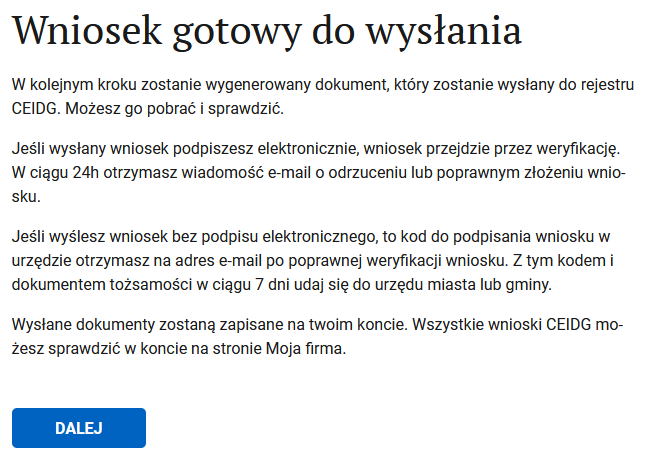
27. Final summary
This prepares you for the fact that the process is almost over:
Click DALEJ
28. Signing the document
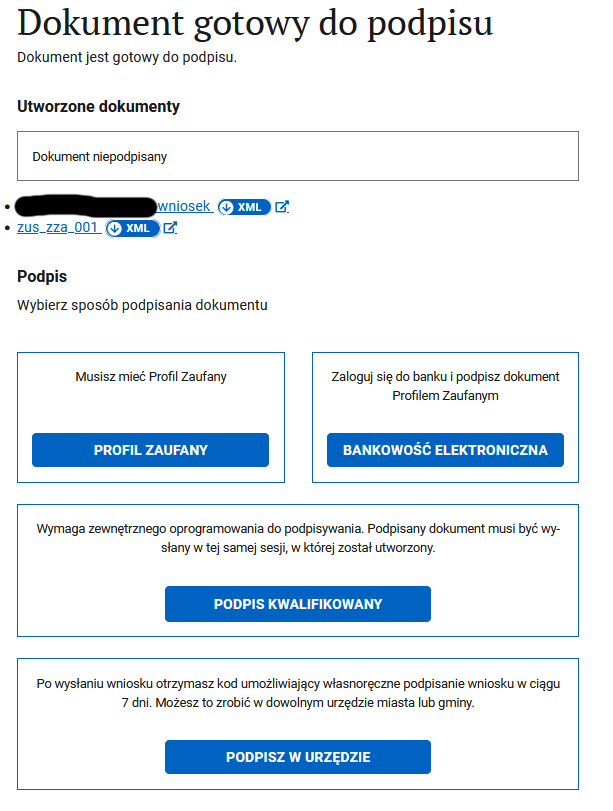
Step Dokument gotowy do podpisu. If you click the XML links, you can download the forms for your records.
Choose to sign with your trusted profile (PROFIL ZAUFANY and BANKOWOŚĆ ELEKTRONICZNA will most likely lead to the same result — I chose the banking option because I registered my profile through a bank):
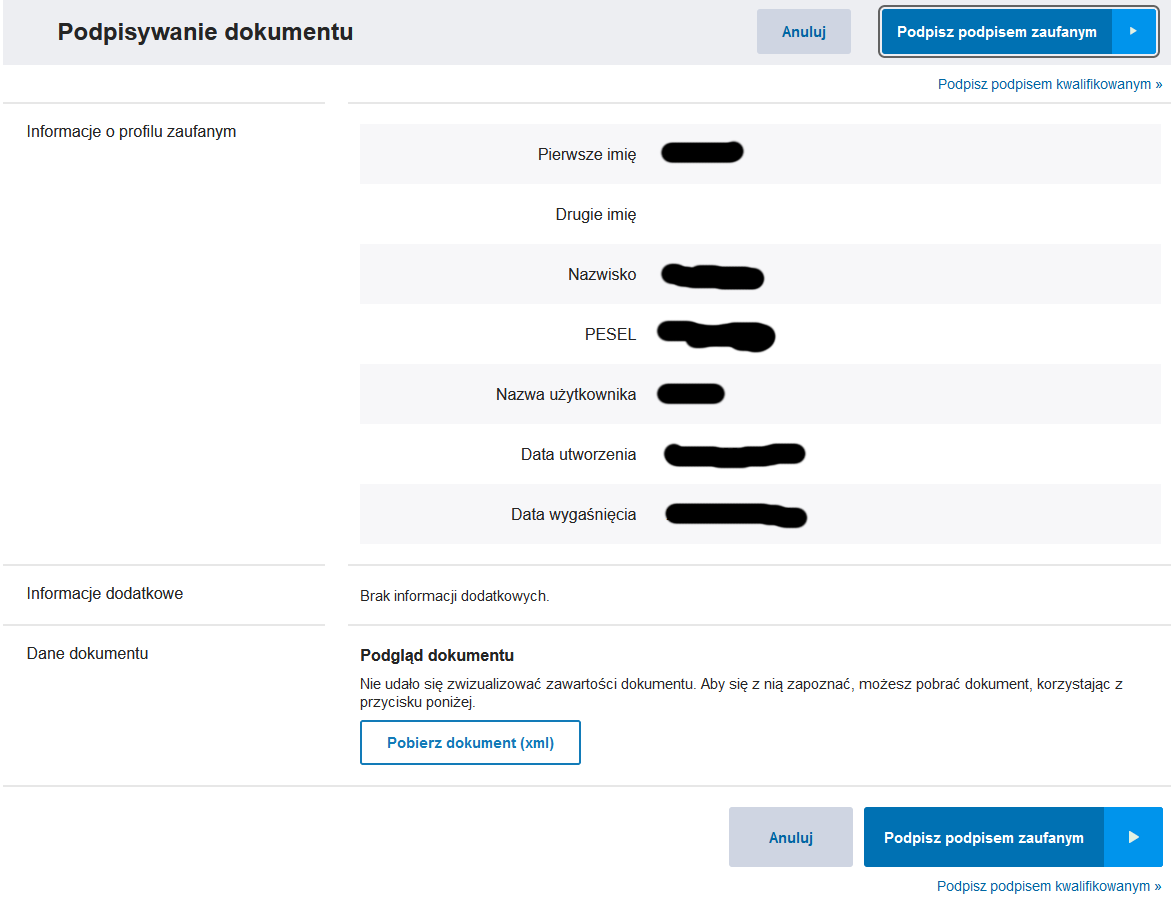
Next, proceed to signing. Click Podpisz podpisem zaufanym:
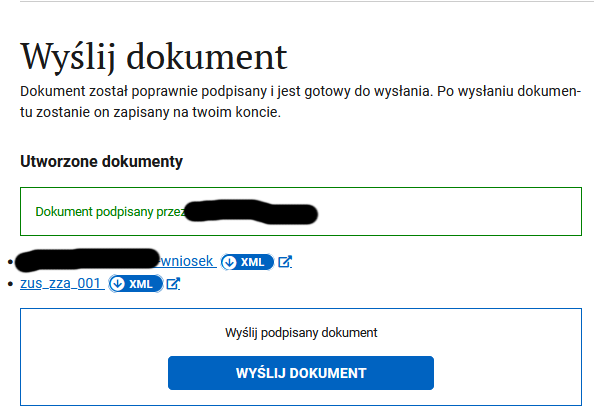
And finally, you can send the signed documents:
It is highly recommended to download and double-check your application
- Go to your konto.biznes.gov.pl account
- Select the entry Zarejestruj działalność gospodarczą w CEIDG in your cases
- Next to 202NNNNN-NNNN-NNNN-wniosek.xml, click Podgląd
- In particular, make sure the tax system is selected — for example, ryczałt (check section 15. Oświadczenie o formie opłacania podatku dochodowego). There was a case where the tax system was left unselected in the application for some (technical?) reason. The person ran their business and diligently paid taxes under the ryczałt system, but after filing the PIT-28 declaration the following year, an inspector contacted them and said the PIT-28 form could not be accepted because no tax system had been selected, meaning the general system applied by default, which meant recalculating and paying additional taxes under the general system. Naturally, this was a shock and a financial blow. So check your application right away.
What's next
You will be notified that your application has been accepted and that you should expect a response within 24 hours.
Your NIP number may be assigned within one to two days. REGON takes longer — it can take up to a week. If there are any errors in the process, you will receive a message asking you to correct them.
You can verify all your company data on biznes.gov.pl
If something went wrong or you encountered problems, you can write to the chat on biznes.gov.pl and ask your question.
Registration is only the beginning
Invoices, ZUS contributions and declarations await you every month. The workflow page will help you handle it yourself, and if you'd rather delegate — there is full-service accounting from the guide's partner, no Polish required.